


Quick Answer:
On Mobile: Profile → Flag icon → + Course → Select new language → Continue
On PC: Go to Duolingo website → Flag icon → Add New Course → Select new language
Want to change your Duolingo interface language?
If yes, then you’re in the right place.
In this guide, I’ll show you step by step how to change your native (or “base”) language on Duolingo.
Let’s get started…
How To Change Your Native Language On Duolingo?
To change the native language of your Duolingo app, you just need to add a course in the language you want to switch to. This will also change the language for the entire app.
Here’s how to do it on both your phone and PC:
On Phone (Android & iOS)
To add a course on Duolingo using your phone, follow these steps:
Step 1: Open the Duolingo app
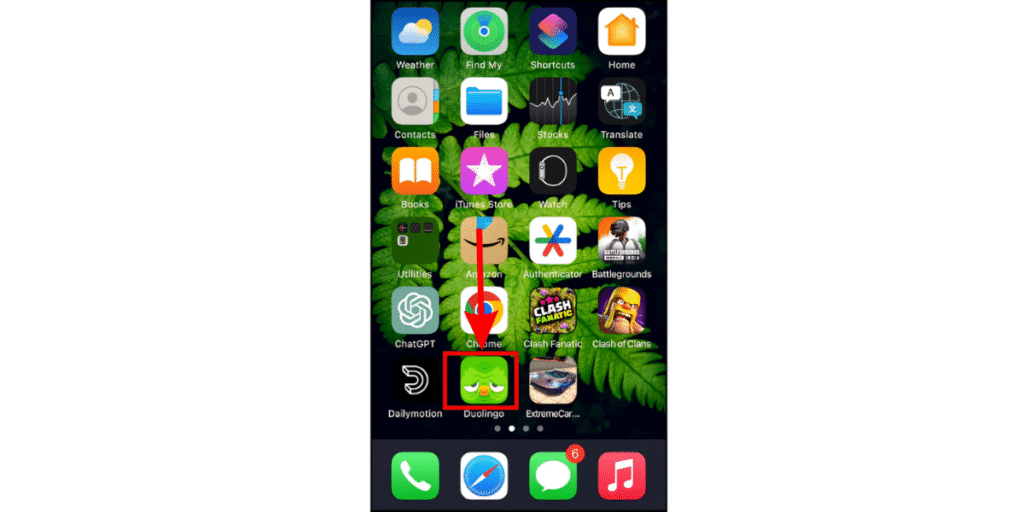
- First, open the Duolingo app on your phone.
Step 2: Go to your current language
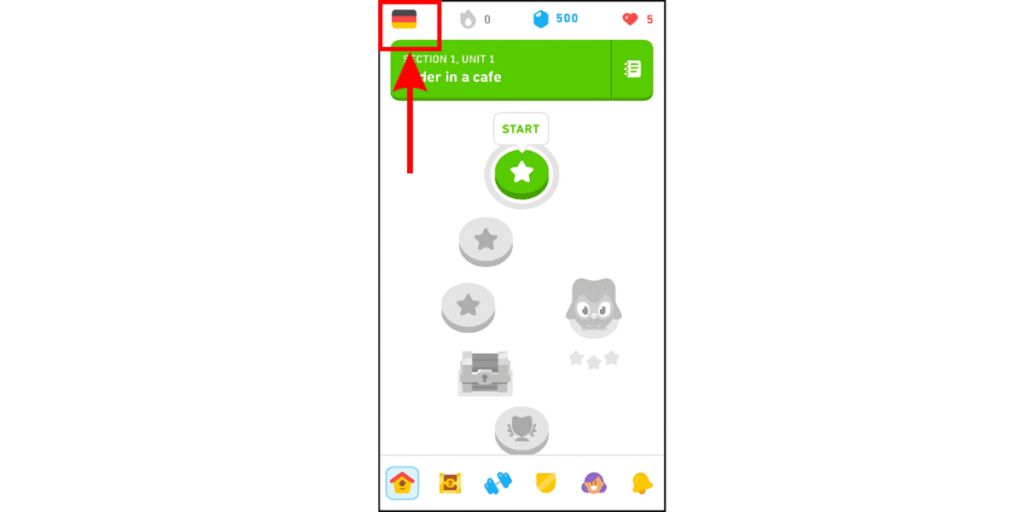
- Next, tap the flag icon in the top left corner that shows your current language.
Step 3: Add a new course
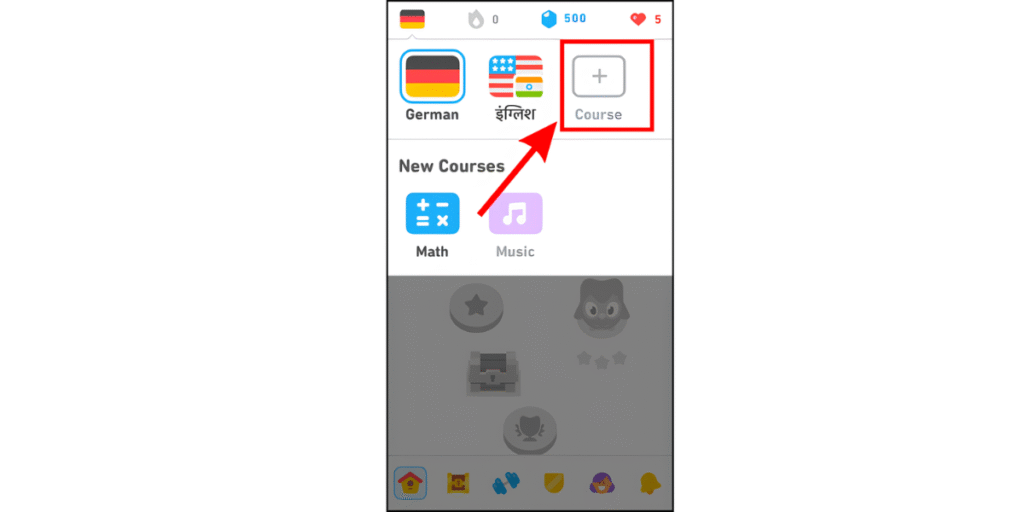
- Now, tap ‘+ Course‘ to add a new language.
Step 4: Choose a language and tap ‘Continue’
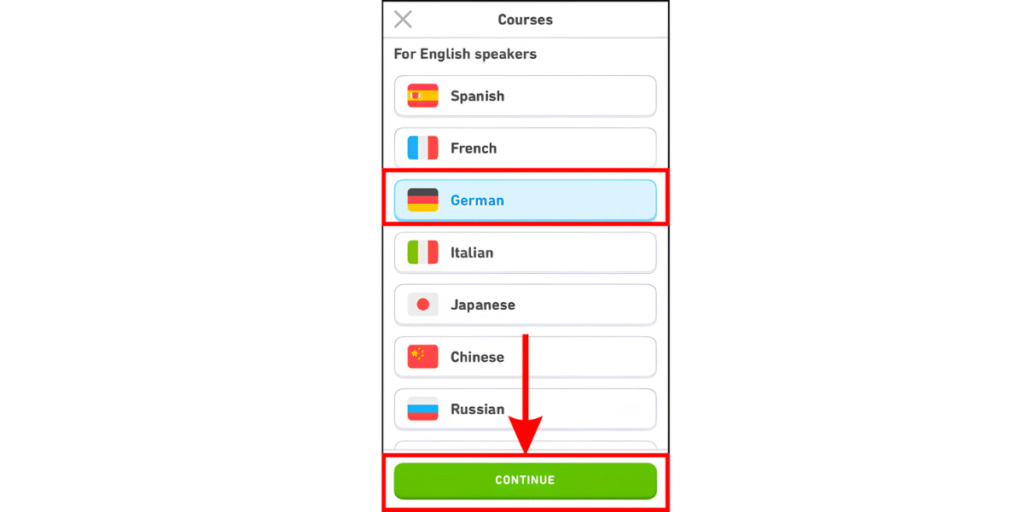
- Finally, you’ll see a list of over 40 languages. Just choose the one you want to learn and tap ‘Continue‘.
On PC (Web Browser)
To add a course on Duolingo using your PC, follow these simple steps:
Step 1: Open the Duolingo website
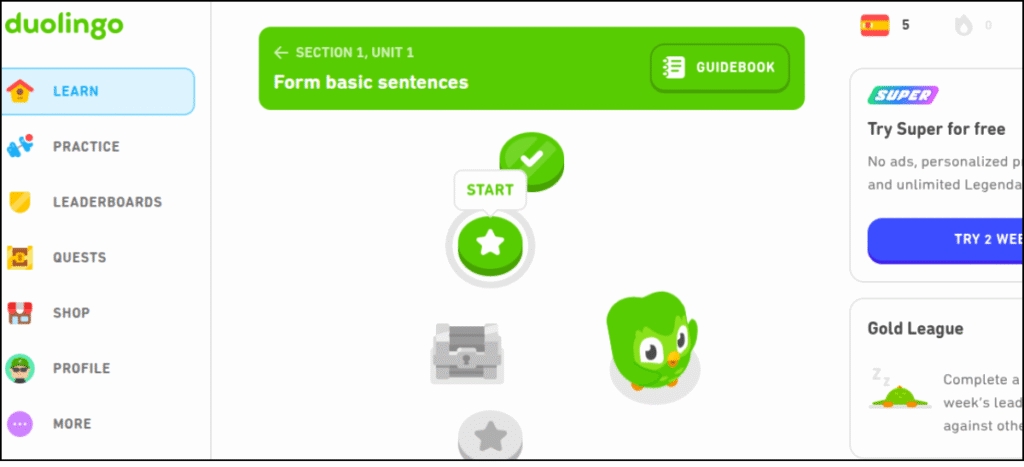
- First, open your web browser, go to the “Duolingo website”, and log in.
Step 2: Open the language menu
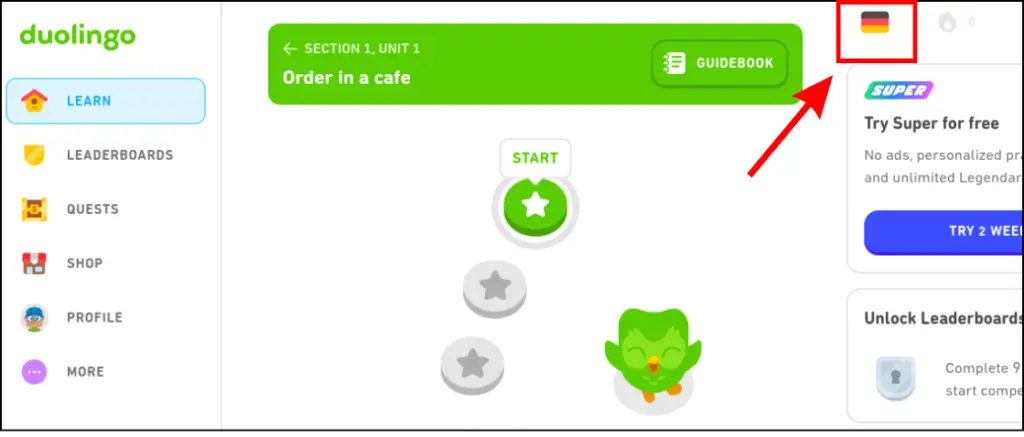
- Next, click the flag icon in the top right corner of your screen. It shows your current language.
Step 3: Add a new course
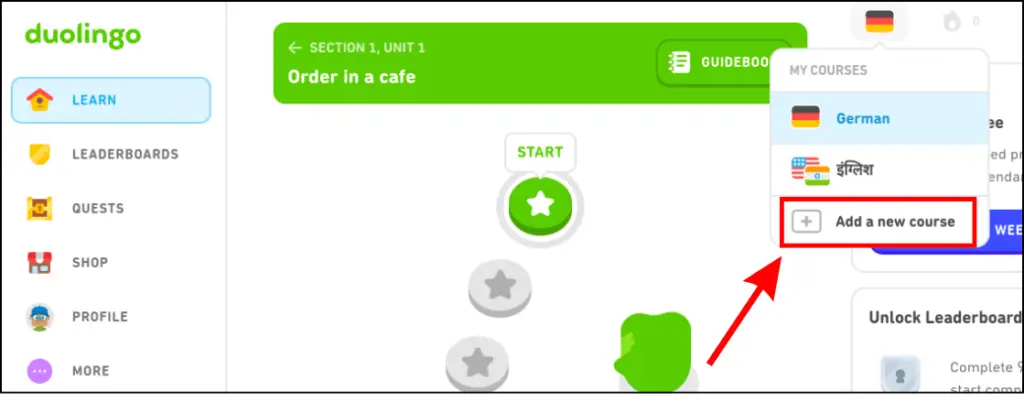
- Now, click ‘Add New Course‘ to choose the language you want.
Step 4: Choose your new language
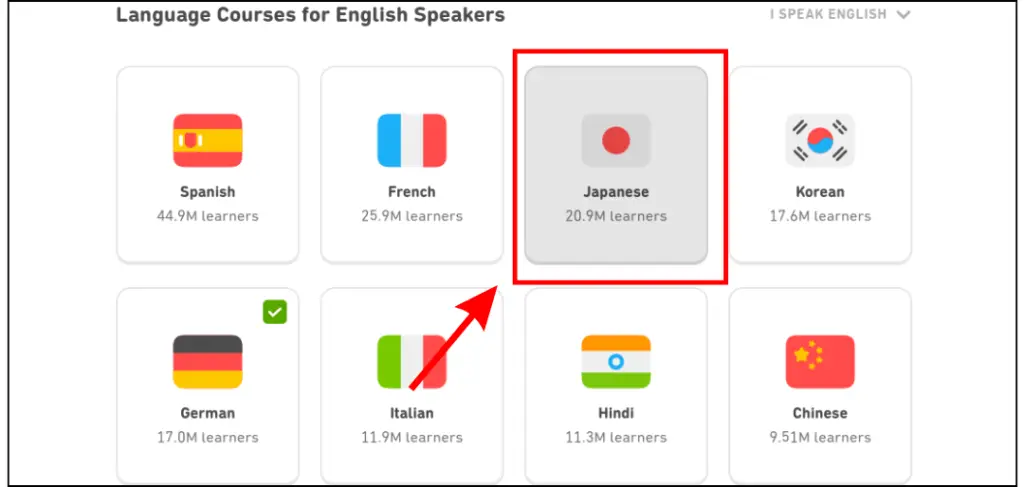
- Finally, you’ll see all 40+ languages on Duolingo. Just select the one you want to learn.
Video Guide:
FAQs
-
Can I change the language of the Duolingo app interface?
You can’t directly change the language of the Duolingo app because it automatically uses your native language.
But here’s an easy trick: if you add a course in the language you want to use, the whole app will switch to that language. -
Can I learn multiple languages at the same time on Duolingo?
Yes! You can add as many courses as you like and switch between them anytime using the flag icon.
-
How many languages can you learn on Duolingo?
Duolingo lets you learn over 40 languages, including popular languages like Spanish, French, Japanese, German, and Hindi.
-
Will adding a new course affect my old progress?
Don’t worry, adding a new course won’t affect your progress in the other courses you’re already taking.
-
Can I remove a language from Duolingo?
Yes, you can remove a course on Duolingo, and it’s straightforward! I wrote a blog post just the other day that walks you through how to do it, step by step.
Wrapping Up
You can’t change the Duolingo app’s language directly, but if you add a course in the language you want, the whole app will switch to that language.
Adding a new course is easy. Just follow the steps I mentioned earlier.
That’s it for this tutorial! If you have any questions, leave a comment, and I’ll be happy to answer.