


Quick Answer
Mobile:
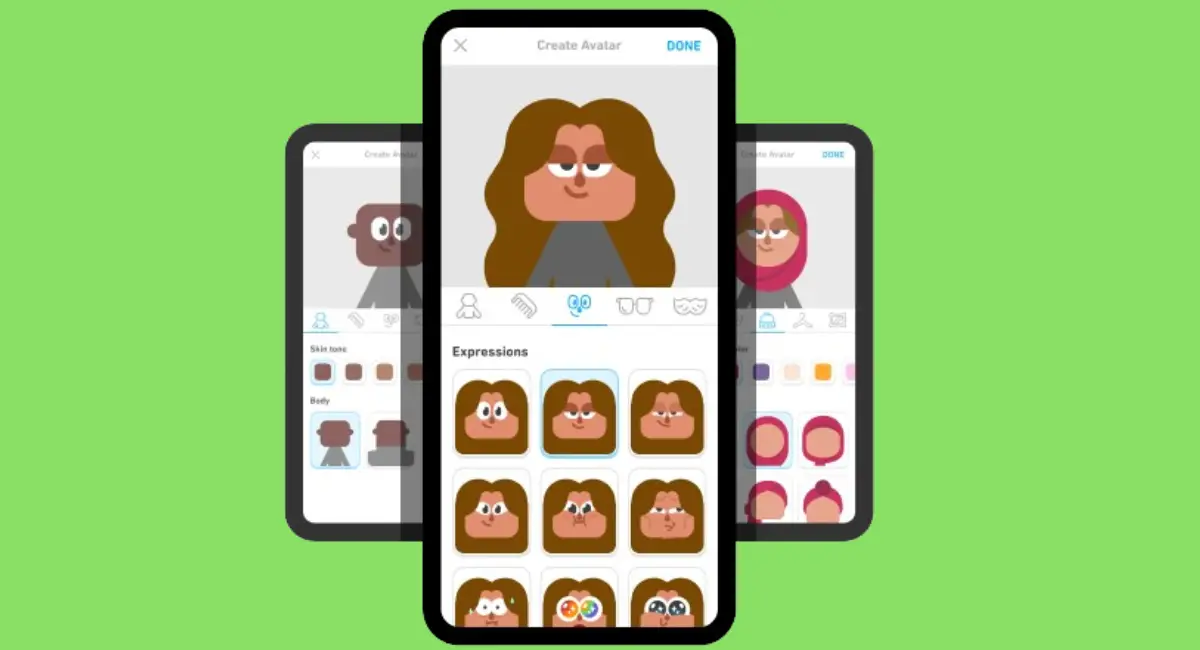
Mobile: Open Duolingo app → Tap on the Profile tab → Tap profile picture (avatar) → Customize → Save.
Desktop:
Desktop: Go to Duolingo website and log in → Profile tab → Click pencil icon → Customize → Save.
Are you tired of the same old, boring profile picture on Duolingo?
Do you want to create a cool and unique avatar, but don’t know how?
Don’t worry – in this post, I’ll show you how to create your own Duolingo avatar, whether you’re using your smartphone or desktop.
Let’s jump in!
What is an Avatar on Duolingo?
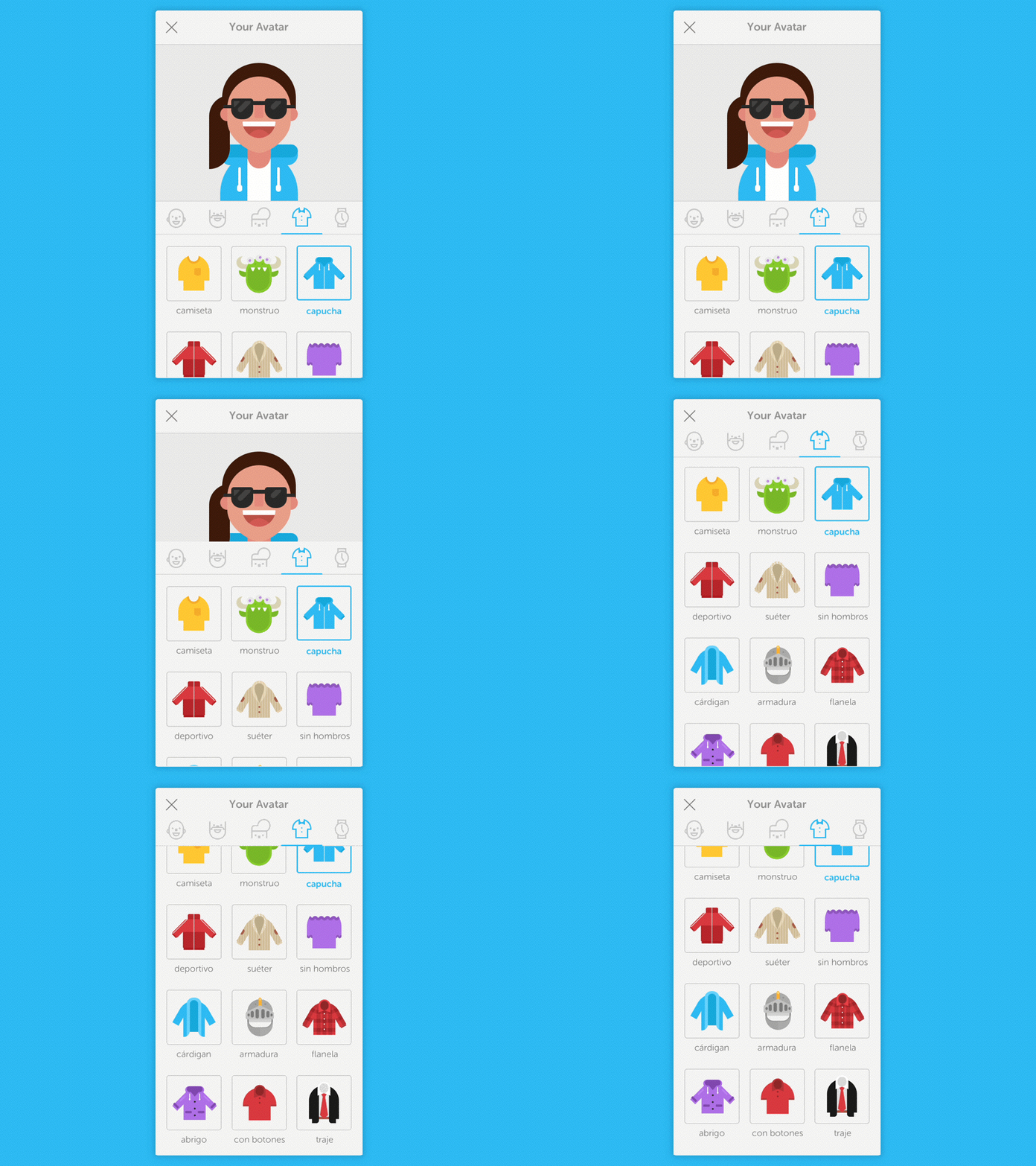
A Duolingo avatar is basically a new virtual character that replaces your old profile picture.
I know a lot of people aren’t happy about the change, but I think it’s a fun way to make your profile unique!
Also, you can customize your avatar by changing its hair, skin color, clothes, accessories, facial features, background, and many other cool options.
How to Create Your Duolingo Avatar?
Creating your Duolingo avatar is very simple! Below, I’ve shown you step-by-step how to do it on both mobile and desktop.
On Mobile:
To create your Duolingo avatar on your mobile phone, follow these steps:
Step 1: Open the App

- First, open the Duolingo app on your Android or iOS Smartphone.
Step 2: Go to Your Profile

- Next, tap the Profile tab at the bottom of your screen.
Step 3: Tap Your Avatar

- Now, tap your current Avatar (PFP) at the top to start customizing it.
Step 4: Save Your Avatar

- Once you’ve customized your avatar, tap Done button at the top right to save it.
On Desktop:
To create your Duolingo avatar on your desktop, follow these steps:
Step 1: Go to the Duolingo Website

- First, go to the Duolingo website and log in to your account.
Step 2: Open Your Profile
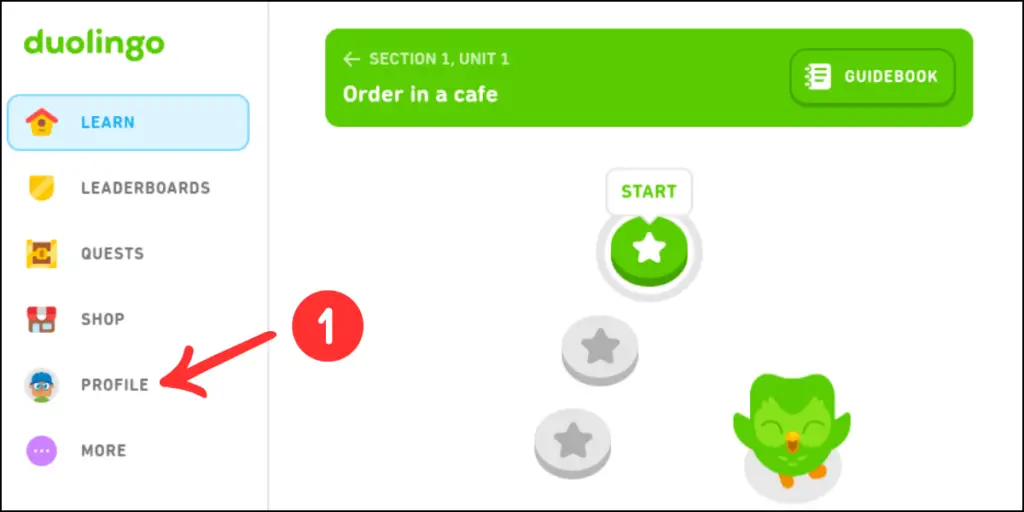
- Next, click the Profile tab from the menu on the left side.
Step 3: Customize Your Avatar
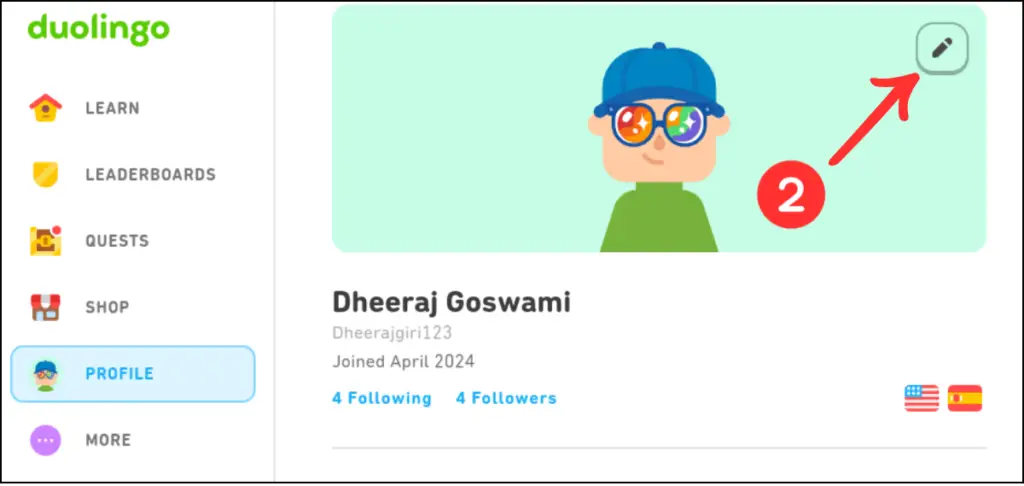
- Now, click the Pencil icon in the top-right corner to start customizing your avatar.
Step 4: Save Your Changes
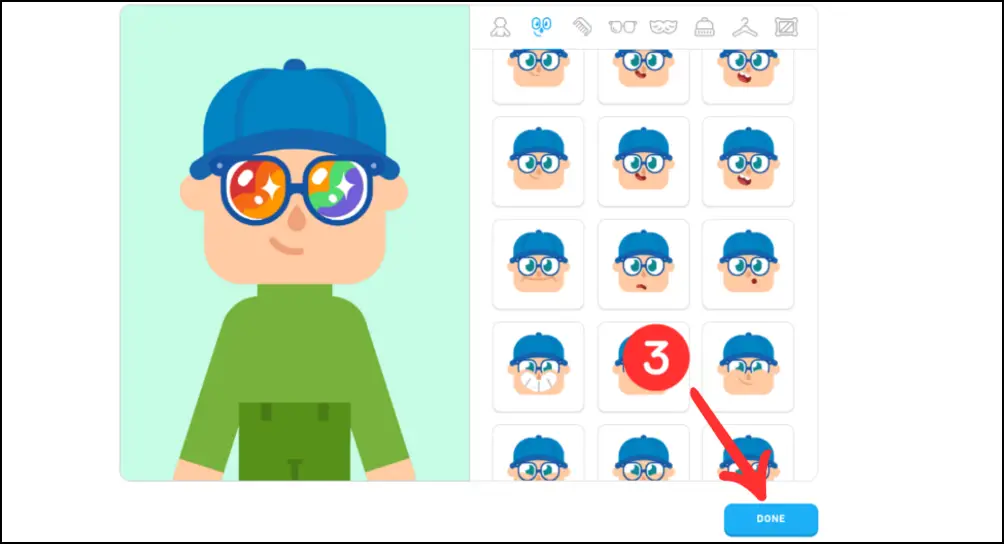
- Once you’ve finished customizing, scroll down and click the Done button to save your changes.
Why Can’t I Create an Avatar on Duolingo?
One of my readers asked, “Why can’t I make an avatar?” If you’re having the same problem, don’t worry—it’s pretty common. Here are a few quick fixes you can try:
- Update the app: Make sure you have the newest version of Duolingo. Old versions might not have the avatar feature.
- Clear the cache (Android only): If you’re on Android, clear the app’s cache. This can fix small loading problems.
- Check if Duolingo is down: Sometimes Duolingo’s servers go offline. If that happens, you just have to wait until it’s working again.
- Reinstall the app: If nothing else works, delete the app and install it again. A fresh install often fixes bigger problems.
FAQs
-
Will changing my avatar affect my streak or progress?
Not at all! Updating your avatar only changes your profile picture (Avatar). Your streak, XP, and lessons stay safe.
-
Can I use my own photo as my profile picture?
No, Duolingo no longer allows that. Instead, you can create and customize an avatar.
-
Is the avatar option available on both mobile and desktop?
Yes! You can make an avatar on both the Duolingo app and the website.
-
Why doesn’t my child’s account have the avatar option?
For safety reasons, Duolingo limits some features (like avatars) on child and classroom accounts.
Wrapping Up
A Duolingo avatar is a great way to personalize your profile, and I really hope this post helped you create an avatar that you love!
Now, it’s time to wrap up this blog post. If you have any questions, leave them in the comments and I’ll be happy to answer.





Why can’t I make an avatar on Duolingo?
Hey Alex, thanks for your comment! Try updating Duolingo, clearing the cache if you’re on Android, or reinstalling the app — that usually fixes avatar issues.