


Quick Answer
On iPhone (iOS):
Open Settings → Tap Apple ID → Subscriptions → Duolingo → Cancel Subscription → Confirm
On Android:
Open Google Play Store → Tap Profile Icon → Payments & subscriptions → Subscriptions → Duolingo → Cancel subscription → Pick a reason → Confirm
I still remember the day I deleted my mom’s Duolingo account thinking, “Alright, that’s done… no more Super Duolingo charges.”
And guess what happened the very next month?
Yep… I still got charged. 😭
I freaked out and reached out to the Duolingo support team right away. That’s when they told me something I really wish I had known earlier:
Deleting your Duolingo account does NOT cancel your Super Duolingo subscription.
You actually have to cancel it through the Google Play Store or Apple App Store.
And that’s when it hit me — if this could happen to me, it’s probably happening to so many others too.
So in this guide, I’m going to show you exactly how to cancel your Super Duolingo subscription, whether you’re using an Android or an iPhone.
Alright, let’s get into it.
How to Cancel Duolingo Plus (Super Duolingo)
Like I mentioned earlier, deleting your Duolingo account won’t stop your subscription. You must cancel it from the App Store or Play Store.
If you’re not sure how to do that, don’t worry, just follow the steps below.
On iOS (iPhone or iPad)
Step 1: Open Your iPhone Settings
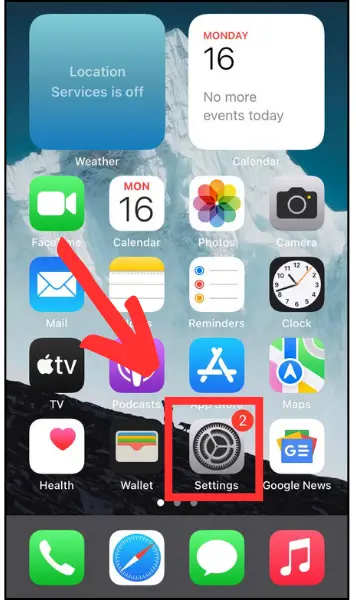
- First, open the Settings app on your iPhone or iPad.
Step 2: Tap Your Name / Apple ID
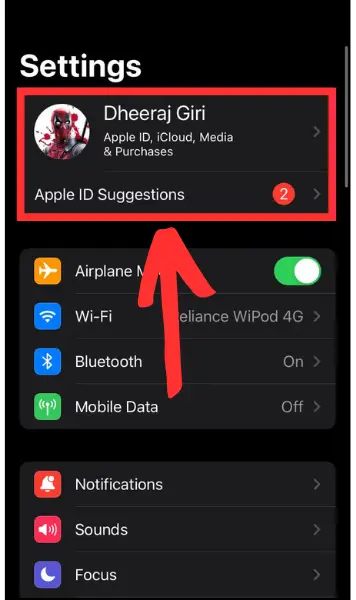
- Next, right at the top, you’ll see your Your Name / Apple ID.
- Tap on that to open your Apple account details.
Step 3: Go to “Subscriptions”
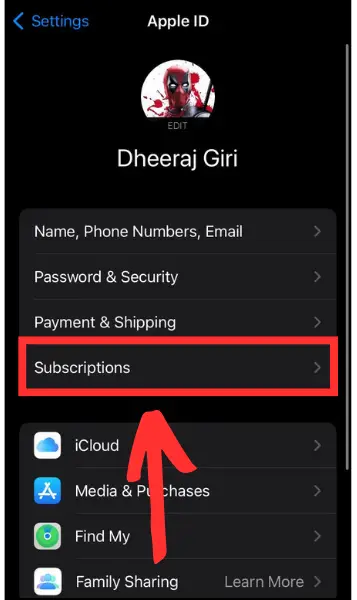
- Now scroll a little until you see the Subscriptions option, and tap on it.
Step 4: Find Duolingo in the List
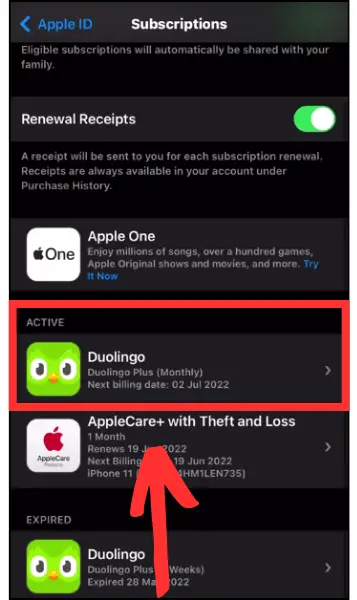
- After that, you’ll see all your active subscriptions.
- Just scroll through the list and tap on Duolingo when you spot it.
Step 5: Tap “Cancel Subscription”
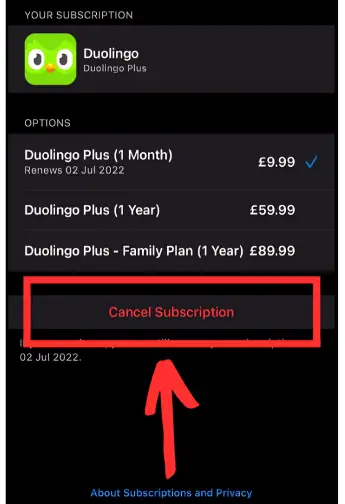
- Finally, tap Cancel Subscription and confirm it when Apple asks you.
And that’s it — your Super Duolingo subscription won’t renew anymore on iOS.
On Android:
Step 1: Open the Google Play Store
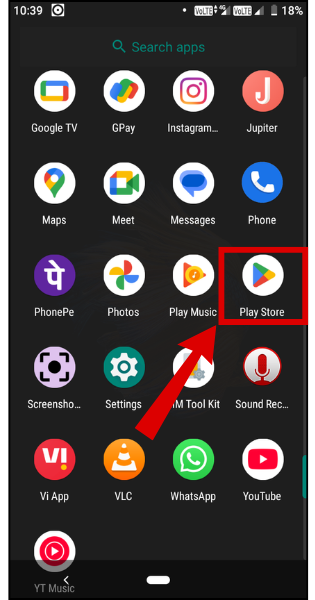
- First, open the Play Store app on your Android phone.
Step 2: Tap Your Profile Icon
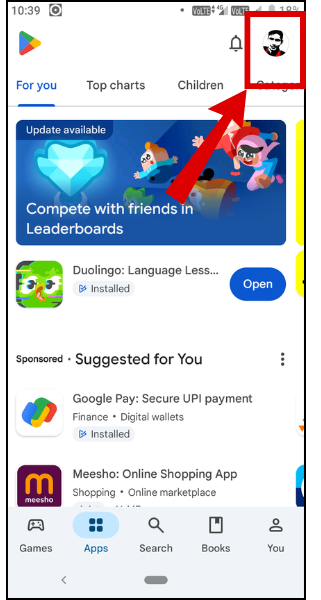
- Next, in the top-right corner, tap your Google account icon.
Step 3: Select “Payments & Subscriptions”
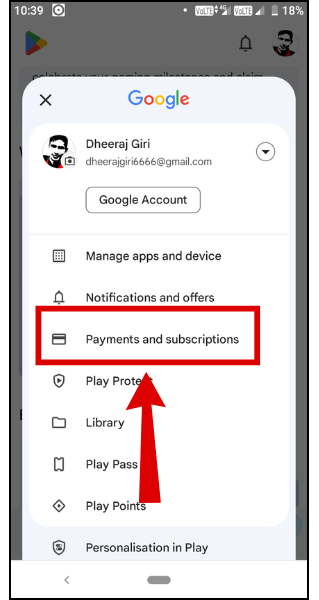
- Now, from the menu, tap Payments & subscriptions.
Step 4: Tap on “Subscriptions”
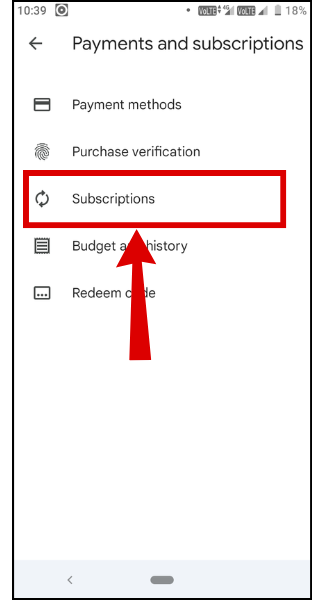
- Next, tap Subscriptions to view all your active subscriptions.
Step 5: Choose Duolingo
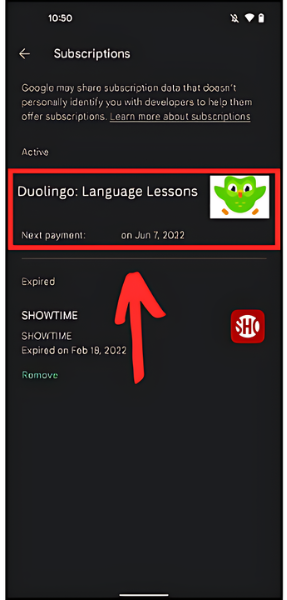
- After that, scroll through until you find Duolingo, then tap on it.
Step 6: Tap “Cancel Subscription”
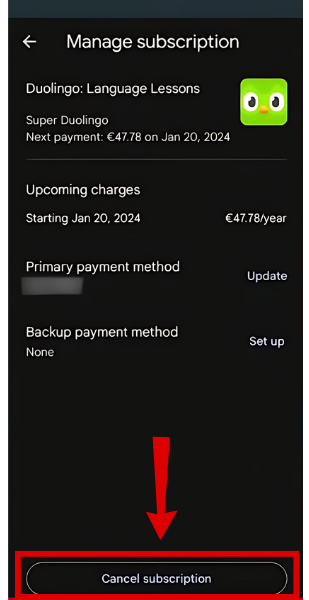
- Now, you’ll see a Cancel subscription button at the bottom – go ahead and tap it.
Step 7: Pick a Reason
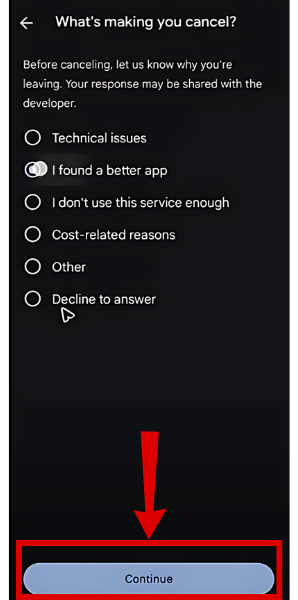
- Now, Google will ask why you’re canceling. Pick any reason (it really doesn’t matter), then tap Continue.
Step 8: Confirm Cancellation
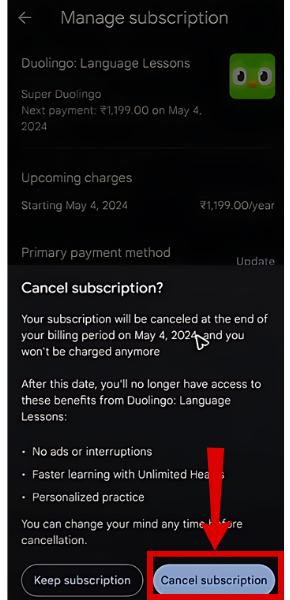
- Finally, tap Cancel subscription once more to confirm.
And you’re all set! You’ve officially canceled your Super Duolingo subscription on Android.
FAQs
-
Will Duolingo give me a refund after I cancel my subscription?
Duolingo usually doesn’t offer refunds, but you can still try requesting one through the App Store, Google Play Store, or even Duolingo support. Sometimes they’ll approve it depending on your situation.
-
Will deleting my Duolingo account cancel my subscription?
Nope. Even if you delete your account, your subscription will keep renewing until you cancel it through the App Store or Play Store.
-
Can I cancel my Super Duolingo subscription anytime?
Yes, you can cancel anytime, just remember that you won’t get a refund for the current billing period.
-
Can I cancel my Duolingo free trial?
Yes, you can cancel your Duolingo free trial anytime before it ends.
Wrapping Up
And that’s it!
Canceling your Super Duolingo subscription is actually pretty simple once you know where to look whether you’re on iOS or Android.
I hope this guide helps you get rid of the Duolingo subscription. If you have any questions, just drop them in the comments below, I’m always happy to help.