


Quick Answer
On iPhone (iOS):
Settings → Apple ID → Subscriptions → Duolingo → Cancel Subscription → Confirm
On Android:
Google Play Store → Profile Icon → Payments & Subscriptions → Subscriptions → Duolingo → Cancel Subscription → Choose a Reason → Confirm
I still remember the day my 14-day Duolingo trial was about to end. I wanted to cancel it, but honestly… I had no clue how to do it.
And yep — Duolingo ended up charging me $12.99.
After searching online, I finally figured out how to cancel the Super Duolingo free trial, and that’s when I realized a lot of people get stuck in the exact same spot.
So if your Super Duolingo free trial is about to end and you want to cancel it, you’re in the right place.
In this blog post, I’ll walk you through how to cancel your Super Duolingo free trial step-by-step.
Let’s jump in.
How to Cancel Duolingo Plus Free Trial?
Honestly, canceling your Super Duolingo free trial is actually a really simple process once you know where to look.
So if you’re trying to cancel your own free trial, don’t stress — I’ve got you. Just follow the steps below for both Android and iOS.
On Android:
Step 1: Open Your Profile

- First, open your Duolingo app and then tap the little profile icon at the bottom of your screen.
Step 2: Find the Settings Button

- Next, tap the settings icon in the top-right corner.
Step 3: Go to “Manage Payments”

- Scroll down a little until you spot “Manage Subscription.” Once you see it, go ahead and tap it.
Step 4: Tap the “Cancel Subscription”

- After that, you’ll see all the details of your current plan. Just tap the “Cancel Subscription” button.
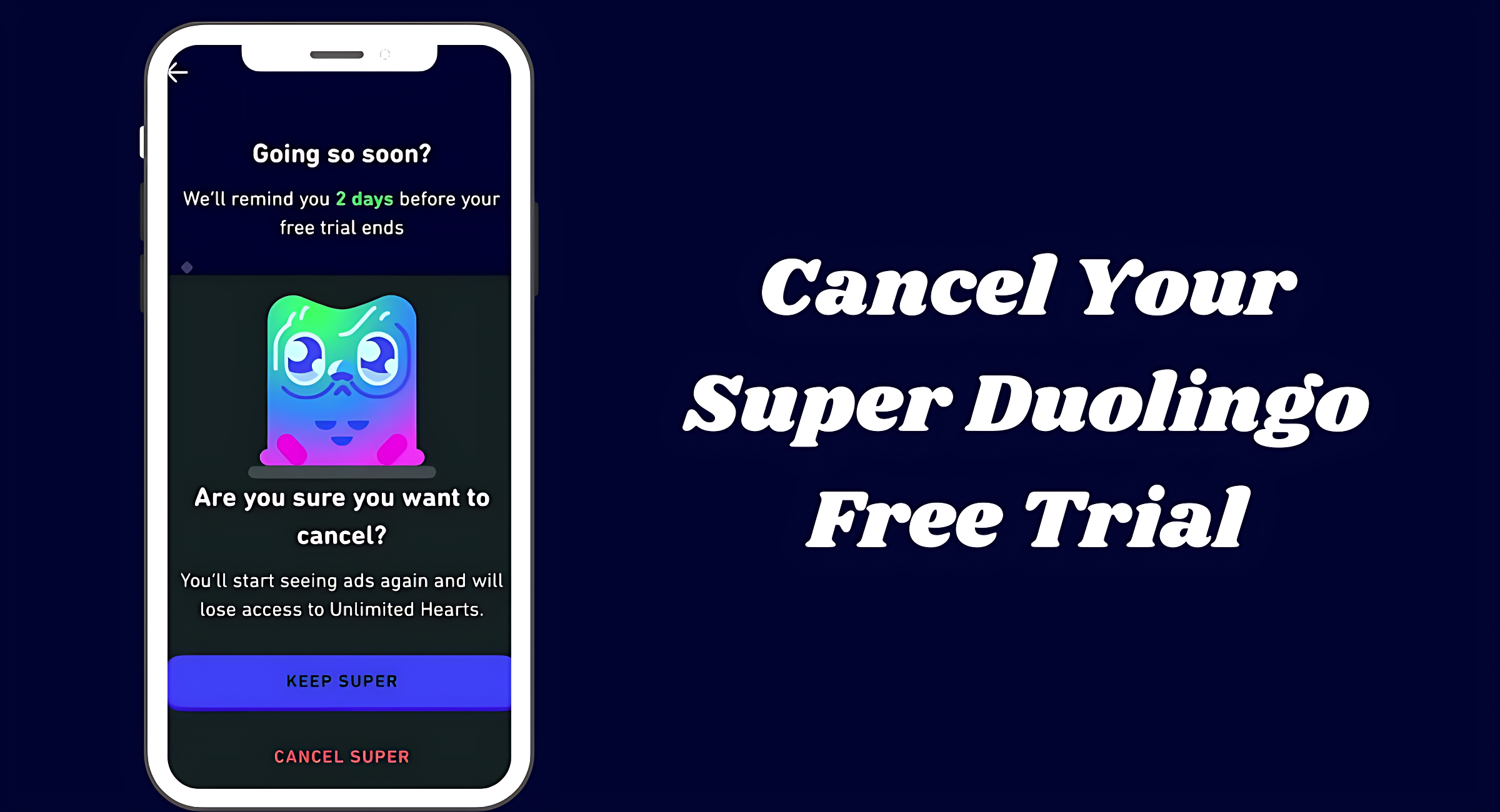
Step 5: Say “Yes” to Cancel

- Now Duolingo will ask if you’re sure you want to cancel your subscription. Just go ahead and tap “Confirm.”
Step 6: Tell Them Why

- Again, Duolingo will ask why you’re canceling. Just pick any reason that makes sense and tap “Continue.”
Step 7: Finish in Google Play

- Now you’ll land on the Google Play subscription page, and you’ll see your Duolingo plan listed there.
- All you need to do is tap “Cancel Subscription” button.
Step 8: Final Reason Check

- Now Google Play will ask you one more time why you’re canceling (I know, a little annoying), but just choose any reason and tap “Continue.”
Step 9: Confirm and Finish

- Finally, tap the “Cancel Subscription” button and confirm it. And that’s it — you’re all done!
On iOS:
Step 1: Open Your Phone Settings

- First, open the Settings app on your iPhone or iPad.
Step 2: Tap Your Name / Apple ID

- Next, at the very top, you’ll see Your Name / Apple ID. Just go ahead and tap it.
Step 3: Open “Subscriptions”

- After that, you’ll see the “Subscriptions” option. Just tap on it.
Step 4: Find Duolingo in the List

- Now scroll through your list of subscriptions until you spot Duolingo, then go ahead and tap it.
Step 5: Cancel the Subscription

- Finally, you’ll see the “Cancel Subscription” button. Tap it, and Apple will then ask you to confirm. Go ahead and confirm — and that’s it!
FAQs
Will I be charged if I cancel during the free trial?
Nope! As long as you cancel before your trial ends, you won’t be charged anything. You can even cancel on the very last day – just make sure you do it before the trial renews.
Why can’t I find the “Cancel Subscription” button?
This usually happens when you’re trying to cancel in the wrong place.
- If you signed up on Android, you’ll need to cancel through Google Play.
- If you signed up on an iPhone or iPad, cancel through Apple Subscriptions.
- And if you signed up on the Duolingo website, you’ll have to cancel right on their website.
Will I lose my Super features immediately after canceling?
Nope! Canceling only stops the renewal. You’ll still get to enjoy all your Super Duolingo features until your free trial ends.
What if I got charged by mistake? Can I get a refund?
Yes, you might be able to get a refund. It really depends on where you subscribed:
- Apple: You’ll need to request a refund through Apple’s Report a Problem page.
- Android: You can request a refund directly through Google Play.
- Web: If you subscribed on the website, just reach out to Duolingo support.
Refunds aren’t guaranteed, but lots of users do get them — especially if they ask soon after being charged.
Conclusion
So that’s the easy guide to cancel your Super Duolingo free trial on both Android and iOS.
I’m going to wrap up this blog post here, but if you have any questions, feel free to drop them in the comments below. I always read your comments and try my best to reply.