


Quick Answer:
- Update the Duolingo App
- Enable Background App Refresh (iPhone)
- Clear App Cache (Android)
- Remove and Re-add the Widget
- Reinstall the App
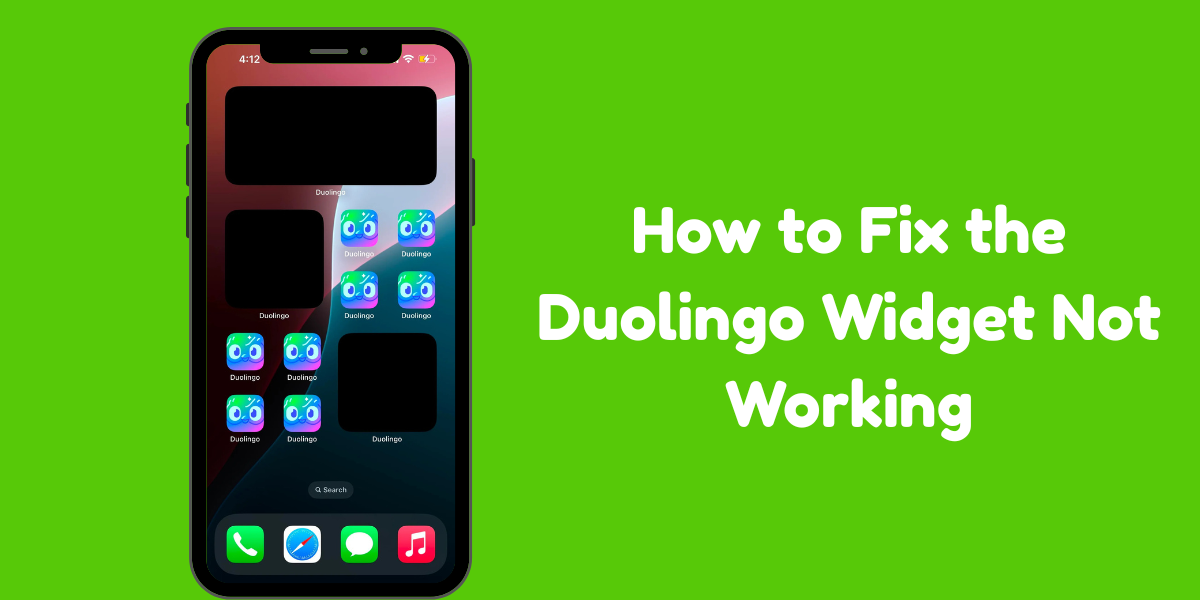
If your Duolingo widget suddenly stopped working, you’re not the only one.
One morning, I opened my phone to check my streak and XP, but the widget was just… gone. Like it never existed. I refreshed, restarted my phone—but nothing helped.
After looking into it, I found out this happens to a lot of people. The widget either disappears, freezes, turns black, or doesn’t update at all.
So in this guide, I’ll show you 5 simple ways to fix it—whether you’re on Android or iPhone.
Let’s get started!
How to Fix Duolingo Widget Black Screen?
If your Duolingo widget is missing, stuck, black, or not updating, don’t stress. Try these quick fixes:
#1. Check for App Updates
Sometimes the widget stops working just because the Duolingo app isn’t updated. So before anything else, make sure you’re using the latest version.
On Android:
- First, open the Play Store.
- Next, tap the search bar and type “Duolingo.”
- Finaly, if you see an Update button, tap it.
On iPhone:
- First, open the App Store.
- Next, tap the search bar and type “Duolingo.”
- Finaly, if there’s an Update option, tap it.
After updating, go back to your home screen and check if the widget is working again.
#2. Enable Background App Refresh (iPhone Only)
If you’re on an iPhone, make sure Background App Refresh is turned on.
Without it, iOS won’t let Duolingo run in the background, and the widget won’t update.
Here’s how to check:
- First, open Settings.
- Next, scroll down and tap Duolingo.
- lastly, make sure Background App Refresh is turned on.
After that, go back and see if the widget starts updating again.
#3. Clear the App Cache (Android Only)
On Android, old app cache can mess things up and make the app or widget stop working.
Whenever something goes wrong for me, the first thing I do is clear the cache — and honestly, it fixes the problem most of the time.
You can try it too. Here’s how:
- First, tap and hold the Duolingo app.
- Next, tap the info (ℹ️) icon.
- then, Go to Storage & cache.
- lastly, Tap Clear cache.
Once you’re done, go back and see if the widget is working again.
#4. Remove and Re-add the Widget
One of the easiest fixes is to remove the widget from your home screen and add it back again.
If you’re not sure how to do it, just follow these steps:
On Android:
To remove:
- First, unlock your phone.
- Next, tap and hold the Duolingo widget.
- Finaly, drag it to the Trash icon.
To re-add:
- First, long-press any empty area on your home screen.
- Next, tap Widgets, then find Duolingo.
- Finaly, drag your preferred widget size onto the screen.
On iPhone:
To remove:
- First, yap and hold the Duolingo widget.
- Next, tap Remove Widget, then confirm.
To re-add:
- First, long-press any blank space until the apps start to jiggle.
- Next, tap the + icon in the top corner.
- Lastly, search for Duolingo, choose your widget, and tap Add Widget.
#5. Reinstall the Duolingo App
If none of the first four methods worked, your last option is to reinstall the Duolingo app and then add the widget again.
Here’s what to do:
- First, delete the app from your phone.
- Next, reinstall it from the App Store or Google Play Store.
- Finally, add the widget to your home screen again.
It sounds simple, but reinstalling the app can clear hidden bugs and get the widget working again.
FAQs
-
My widget is showing a black, white, or grey screen. What should I do?
This usually happens because of a small loading error or glitch. Just restart your phone or remove the widget and add it again.
-
Why isn’t my widget updating my streak or progress?
It’s usually because the app isn’t allowed to refresh in the background.
1. On iPhone: Turn on Background App Refresh for Duolingo
2. On Android: Make sure Duolingo isn’t restricted by battery saver or data settings -
The widget broke after I updated my phone. Why?
Sometimes system updates can mess with widgets. Just check the App Store or Play Store to see if Duolingo has a new update— they often release a quick patch.
-
Will reinstalling the app delete my streak?
Nope! Your streak and progress are saved to your Duolingo account. Just log back in after reinstalling.
Wrapping Up
And that’s it! These steps helped me get my Duolingo widget working again, and I hope they help you too.
If it still doesn’t work, don’t worry — it might be an issue on Duolingo’s side. Give it a day or two and try again.
That’s all for now! If you have any questions, just drop them in the comments — I’ll be happy to help.





Learn is my primary